Leaderboard




Popular Content
Showing content with the highest reputation on 06/03/18 in all areas
-
Version 26.07.07
13406503 downloads
Pokémon core series save editor, programmed in C#. Supports the following files: Save files ("main", *.sav, *.dsv, *.dat, *.gci) GameCube Memory Card files (.raw, .bin) containing GC Pokémon savegames. Individual Pokémon entity files (.pk*) Mystery Gift files (.pgt, .pcd, .pgf, .wc*) including conversion to .pk* Importing teams from Battle Videos Transferring from one generation to another, converting formats along the way. Data is displayed in a view which can be edited and saved. The interface can be translated with resource/external text files so that different languages can be supported. Pokémon Showdown sets and QR codes can be imported/exported to assist in sharing. We do not support or condone cheating at the expense of others. Do not use significantly hacked Pokémon in battle or in trades with those who are unaware hacked Pokémon are in use. FAQ Support Forum <-- Post here if you have questions or found bugs1 point -
This is a very basic tutorial on how to add a new overworld to any map and add a connecting script to it. This is being made upon a request from somebody but I'm hoping it might help anyone else who's not sure where to start. Please note that I'm using PPRE for this tutorial. While I do appreciate that SDSME is generally more reliable, I can't seem to get it to work for Platinum. Every time I save an area's script, it just deletes the whole thing! PPRE is buggy but it's possible to get around the problems. This tutorial is primarily focused on Platinum but the content here should apply to HG/SS as well, although SDSME might actually work for those. Anyway, let's begin. 0. The Tools To do this you'll need a few things... * Your DS game and DeSmuME to run it on. * Project Pokémon's ROM Editor aka PPRE. This tutorial uses the 0.14 version. * The LUA51.dll file that allows your DeSmuME to use Lua scripts. A quick Google search should help you with this - it might be Lua51.dll or Lua5.1.dll - and the x86 DeSmuME and x64 DeSmuME will require different versions. You might need to try a few combinations to get it to work. * The Lua script for showing the player's position in Platinum. The code can be found at this pastebin (with thanks to Kaphotics for the frame) or below. I've also included the HG/SS position script below. Platinum --- while true do gui.text(0,0, string.format("X: %d, Y: %d", memory.readword(0x021C5CCE,2), memory.readword(0x021C5CEE,2))) emu.frameadvance() end HG/SS --- while true do gui.text(0,0, string.format("X: %d, Y: %d", memory.readword(0x021DA6DE,2), memory.readword(0x021DA6FE,2))) emu.frameadvance() end Simply make a new text file, paste this in and save it as <name-of-your-choice>.lua and you're good to go. 1. Find the location you want to edit. In the Maps tab in PPRE, you'll be able to select from each of the maps in the game. They're generally listed as their location with a suffix depending on whether it's inside a house etctera. The easiest way to find a specific location is to check the Text tab for a map and see if you can find text strings that match what you see in that location in-game. For example, we'll use this house in Floaroma Town as an example for this tutorial... So to find this, first we'll speak to somebody on the map to see a text string... Then find the matching map in PPRE by looking at the text tab. text_0 here matches what this guy says, so this is the map we want. 2. Add the overworld. Now that we're on the map we want in PPRE, head over to the Events tab, and click on the Overworlds secondary tab below. We'll see two 'pages', each one representing one of the overworlds in the map. Each overworld has a number of parameters, as you can see. You can ignore a lot of them, but: * ID = the identifier for the overworld. This always matches its page number in PPRE. Used for scripts that add/remove overworlds dynamically, change their location and more. * Sprite = The index for the sprite that the overworld takes on. This pg_0 refers to the woman (we can tell by the X/Y coords) so the sprite 16 is the generic woman sprite. * Movement = The index for the movement type the overworld takes on. Admittedly I'm not that familiar with this one - you can leave it at 0 for any still overworlds though. * Flag = The game has 'flags' that can be set via scripts. The number in this one represents a flag. If the respective flag is set, the overworld will _not_ appear. * Script = The index for the script. In the scripts tab you'll see pages listed as scr_1, scr_2 etcetera. Generally the index will match the script number, e.g. on this example the woman uses scr_2. You may see excessively large numbers for some things like item Pokéballs and normal trainers - in this case the overworlds use something called a level script which isn't shown in the scripts tab. * Number below script = The direction the overworld faces by default. 0 = looks up, 1 = looks down, 2 = looks left, 3 = looks right. * Line of sight = This only applies to generic trainers who will spot you and have the ! above them. The number is how many squares away they can spot you from. * Numbers two and one row above X-coordinate = Seems to control how far an NPC can move when they don't have a Movement index that keeps them still. I'm not sure on the details. * X-coordinate = The X-coordinate on the map that this overworld starts at. * Y-coordinate = The Y-coordinate on the map that this overworld starts at. * Z-coordinate = The Z-coordinate on the map that this overworld starts at. I've yet to see this used, though. On the top left of this sub-window, you'll see a little box that currently has a 2 in it. That determines how many overworlds are on the map. Just move it up to 3 to add a new pg_2! Let's try to get a new overworld to show up here. Of course, how do we know what co-ordinates these are? This is where the Lua script comes in. By activating this, the X/Y coordinate numbers where the player is standing will be drawn on the bottom screen. To activate it, in DeSmuME, go to Tools -> Lua Scripting -> New Lua Script Window. Hit Browse, select the saved .lua file that you should have done in the tools section above, and then the coordinates should pop up (assuming you've got the .dll file stuff working), e.g. In this case, the LUA script says this position is (x: 2, y: 3), so these are the parameters we'll use. For the parameters we need to change... ID = This overworld is pg_2, to set this to 2. Sprite = Let's make this Gardenia. I can tell you that Gardenia's sprite index is 127, so let's set it to that. I don't have a complete list of Platinum overworlds but a lot are the same as HG/SS, which has a list that can be found here. The number below Script = Let's set this to 1 so she looks down. X-coordinate = 2 Y-coordinate = 3 So it should look like this. You then need to back out of the Maps screen and Write ROM on PPRE. Just input a name for your ROM, hit write, and that'll save a new ROM with the changes you've just made. Then enter the area we just edited, and... There she is! However, she just doesn't respond to the player at all. That's where the script bit comes in. 3. Adding a script to your new overworld. This time we want to look at the Script tab in PPRE. We can see there's tabs for scr_1 and scr_2 here. We can also see from the overworld tab that scr_1 links to the man and scr_2 to the woman, as their overworld entries have their script indices set to those scripts respectively. scr_1 here is an example of a basic message script. Let's break it down... Fanfare 1500 = The little sound that plays when you speak to an NPC. Lockall = Locks all overworlds in place in the room. A standard when a script is active. Faceplayer = Makes the overworld using the script face towards the player. Message 0 = Displays a message with index 0. The index matches how it appears in the Text tab, i.e. Message 0 refers to text_0. WaitButton = This holds the message in place on the screen after it finishes until the player presses a button. CloseMsgOnKeyPress = This closes the message box when the player presses a button. In this case the same button will take the message off and close the box. Releaseall = Allows all overworlds to walk again. End = Signifies the end of a script. Doesn't strictly do anything but essential for the game to parse the scripts correctly. Let's make Gardenia say something! We'll need to add a new script, so hit the Add Script button to produce a scr_3 tab. In this case we can just copy and paste the entire script from scr_1 into scr_3. However, we'll want her to say something unique, so let's change the Message 0 to Message 2. You'll then have this: Good. Next thing we'll need to actually have a msg_2! Go to the text tab in PPRE and simply add a new line to the text box. You'll notice that there's a couple other characters involved in these text strings. They're just simple controls for how to format the text. Pokémon message boxes (at least in the DS games) show two lines at a time and can only show so many characters. The message DO NOT line break automatically - it's up to the programmer to split it correctly. Adding \n will add a line break, so text goes down from the first line to the second line. Adding \x25BD will add another line break that allows the text to go down from a second line to a third, or to a fourth etcetera. It allows the text to keep being fed through after a key press. Adding \r will refresh the box and start from the top again. You can look at the text in the game to see examples of how best to use these. In this case we're just going to have a \n so the message splits onto two lines. Lastly, go to the Events tab again, the overworlds tab inside this, and to pg_2, where our Gardenia overworld sprite information is. As we've written script 3, change the line labelled script to 3. And that's it! Write your ROM, re-enter the map and Gardenia should be talking to you. That's basically the process of adding new stuff in a nutshell. Obviously the scripts can get a bit more complicated than that (branching statements, making trainer battles, adding movements, having them give you items but only once, setting variables based off your gender, or your picked starter, or...) but this stuff can all be figured out just by inspecting the other maps in the game and finding similar scripts to what you want to do. I may try to make this tutorial more inclusive in the future - this is just more to get people off the ground. That said, I'm happy to field questions about Gen 4 scripting as best as I can manage. 4. A Warning about PPRE There's a big problem with PPRE 0.14 where it can corrupt scripts that have movements in them, e.g. when you talk to an NPC and they go ! or whatever, which will cause the game to freeze when it tries to do the movement. You won't have this issue in this tutorial but it's very likely to come up in any extended ROM hack. This bug occurs because PPRE 0.14 will save the script with the incorrect number of bytes. There's two ways to get around this: 1. Add in a new line to a script to bring the amount of bytes up to the correct total. My personal favourite is to just throw in: Setvarhero 0 on any random line. This normally functions as a way to show the player's name in speech, but it doesn't really do anything otherwise. However, in hex this translates into 3 bytes. The issue with PPRE 0.14 is that it ends up saving the script with an odd number of bytes, so throwing this in will make it even again and it should work. You may need to take the extra line in and out as you build up your script though. Also please note that the above is for Platinum. For HG/SS, PPRE uses a slightly different casing which you'll need to use instead (note the capital H)... SetvarHero 0 2. Open the same map but with PPRE 0.12 and save it again. You'll maintain the exact script that you wrote but PPRE 0.12 will save the script correctly and then it'll run. You may have to continuously do this as you build up your script. I'd still recommend using PPRE 0.14 to write the script as the interface is much nicer and more commands have been 'un-hexified'. You can get PPRE 0.12 from the download link on Oxnite's post here: https://projectpokemon.org/home/forums/topic/7881-ppre-download-location/1 point
-
1 point
-
Just use PKHeX and add them to your inventory.1 point
-
I edited my profile to less dramatize my autism. I was sorta having a hard night last night anyways. o.O;;; The posts in the thread are refreshing reads EDIT: Thanks everyone.1 point
-
Hmmmm...1 point
-
I thought you might. Whenever I meet someone who considers themselves disabled, I throw that line out there. It tends to change their mind.1 point
-
In addition, my wild Pokémon modifier codes may come in handy as well.1 point
-
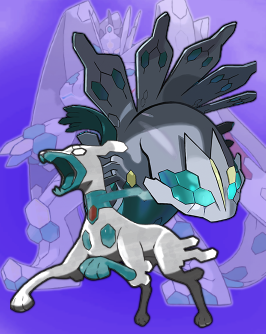 As long as its not Complete Form (meaning Power Construct 10%/50%) shouldn't be a problem. It's something that can be done in-game.1 point
 -
I've actually played the demo for a bit, and it's a REALLY interesting playthrough. The same yet completely different to what we got. The Voodoo doll Pokemon has to be one of my favorites of the early designs. I know this may seem like a long stretch, but I do hope PKHeX adds support for this when things become more polished, translated, and saving gets added. You could argue that "it's going to be classified as a hack by then, so by those standards all hacks should be added to the database!" but I consider this a special case. There are dozens of hacks out there, but this was officially made by Game Freak and the only thing that's getting added by the hackers is an English translation, various bug fixes, and the ability to save. Everything else was made in house and not by any sort of fan. The fact that the Diamond and Pearl demo is supported by PKHeX with a few tweaks also really hammers the point in. On a more unrelated note, I came up with some of my own fan assumptions about this vastly different region. It's in a spoiler because it doesn't exactly fit the criteria of the topic.1 point
-
The pk2 structure is identical to the final games. Basically a pk2 looks like this. General PK2 Structure 0x00 0x01 0x01 Species ID 0x02 0xFF 0x03 - 0x32 Pokemon data https://bulbapedia.bulbagarden.net/wiki/Pok%C3%A9mon_data_structure_in_Generation_II 0x33 - 0x3D OT 0x3E - 0x48 Nickname As you may know OT names and nicknames are stored separately from the rest and the first 3 bytes are not present in the save file. This is also the case for the demo. For the save file the offsets are as follows: 0x2000 Party Pokemon count 0x2001 - 0x2007 Party Pokemon species IDs (+ 0xFF as terminator at the end of the list) 0x2008 - 0x2007 Party Pokemon (30 bytes) 0x2128 - 0x214B OTs (6 bytes, 0x50 as padding bytes) 0x214C - 0x216F Party nicknames (6 bytes, 0x50 as padding bytes) In the RAM you will find the same structure starting with the party Pokemon count at 0xD6AA.1 point