Search the Community
Showing results for tags 'wine'.
Found 6 results
-
Whenever I type in a search box in PKHeX (e.g. to search for a Pokemon species, move, nature, etc.) it will crash immediately. I'm currently using Ubuntu 22.04, but this was also a problem on Ubuntu 21.10. Every other aspect of the program works perfectly fine, it's just very annoying having to manually search through the massive lists to find what I'm looking for. Any help is appreciated! Here's the crash log:
-
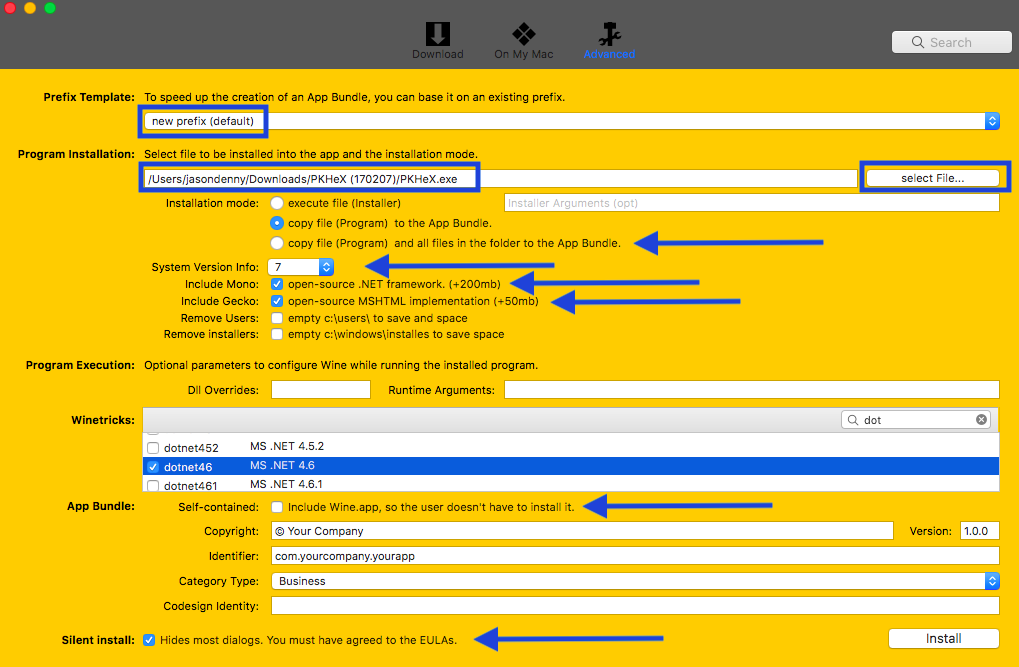
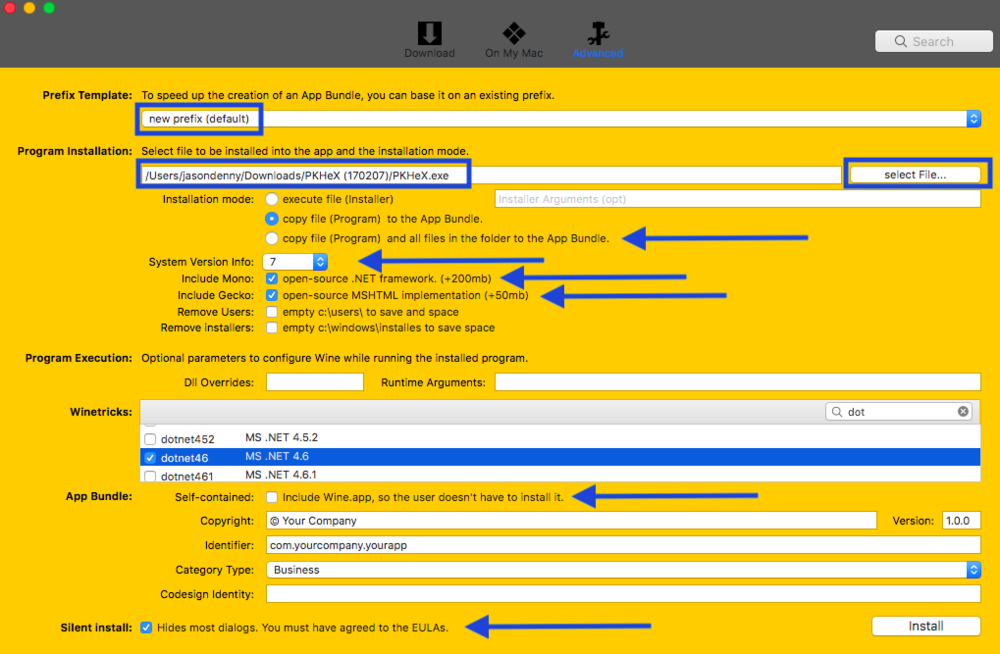
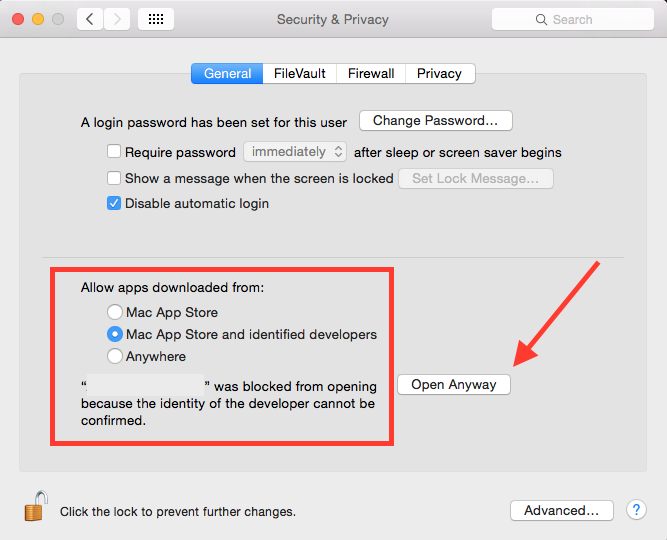
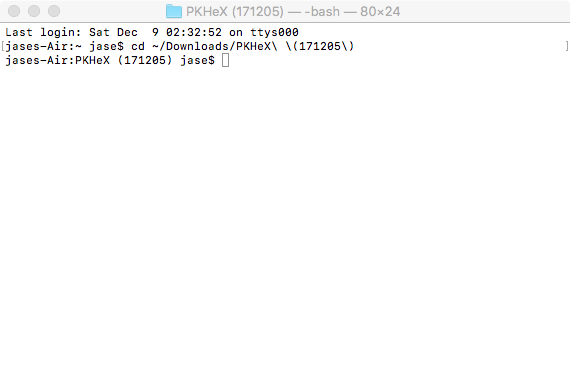
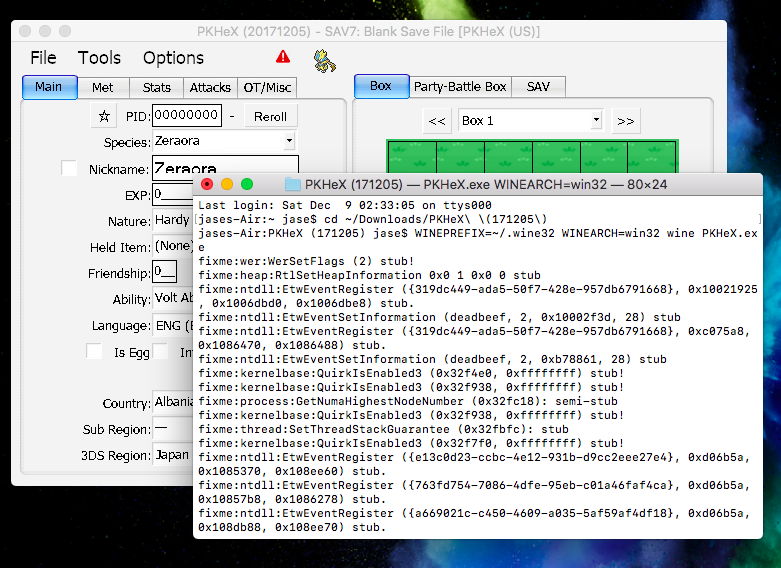
PKHeX on Mac A User Friendly Guide for WINE Intro This guide will hopefully clarify a few things regarding WINE and PKHeX running on MacOS as well as help anyone start from scratch with WINE [in order to run PKHeX]. WINE is a fickle thing; it's not guaranteed to work (at all) but the success rate these days is impressive! So, don't get discouraged if things do not work the first time around. Nothing we do in this guide is permanent, although I encourage you to make a Time Machine backup of your system or at least backup your important data. With that being said, I have been using WINE for quite some time. Regarding PKHeX, It's going on almost a year and I have yet to experience any depressive issues using WINE to run it. I have done several clean installs of macOS Sierra and macOS High Sierra in order to give you the most accurate information possible. If I have missed something or you know any tips or tricks, I would appreciate the feedback! Also, you'll find only the bare minimum information in this guide of what you will need to get PKHeX up and running. I say this because without any theming, the app will look like an old school Windows program. NOTE: Aesthetics may not be the most important thing to consider (especially if you're in a hurry or maybe don't care) however there are some dependencies (winetricks) that are absolutely necessary for some programs to run. Fortunately PKHeX isn't too picky. Choices Download the PKHeX app in the PKHeX for Mac thread Use Winebottler to make a PKHeX.app for yourself Use Wineskin Winery to make a PKHeX.app for yourself (no support here) Use WINE to run the PKHeX executable via Terminal Use a Virtual Machine (VM) or something along those lines (no support here) Winebottler Pretty straight forward process. Tick all of the items with arrows next to them, like in the screenshot below. Also necessary winetricks for PKHeX: dotnet461; corefonts; cjkfonts; tahoma. May need to change security preferences to run the app: NOTE: Winebottler is the fastest, easiest "DIY" option for a beginner. (Some argue that Wineskin Winery is the fastest and most easy way to whip up an app. I'll say it just depends on your skill level, though I agree.) Another thing, apps may be less stable than if they were launched using other methods basically because of the lack of options Winebottler has to fine tune things (e.g.; adding a string in the Registry Editor to enable Retina compatibility.) Install WINE on your Mac [Run PKHeX Using Terminal] Installing WINE on your system using Homebrew is the most noob-friendly way [to install WINE on Mac] that I have found, so let us just use that. To start, I'll tell you that you will be installing 4-5 minuscule things on your Mac; Xcode CLT, Homebrew Package Manager, XQuartz, WINE, and some Winetricks depending on the executable your are attempting to run. In this instance, our target is PKHeX. So onto the first thing, Homebrew. Before you can use "brew commands" in Terminal, you must have Xcode Command Line Tools installed. If you already have Xcode installed on your Mac, you should be peachy. If not, no problem! Open Terminal to get started! Xcode CLT: xcode-select --install If you're asked to agree to Xcode's ToS, next type: sudo xcodebuild -license Homebrew Package Manager: /usr/bin/ruby -e "$(curl -fsSL https://raw.githubusercontent.com/Homebrew/install/master/install)" When that finishes up, you'll want to make sure everything is in order: brew doctor For future reference, you can update Homebrew using: brew upgrade XQuartz: brew cask install xquartz WINE: brew install wine brew upgrade wine # For future reference That will create a 64-bit WINEPREFIX which will be located at: ~/.wine NOTE: If you would rather use the developer version of WINE, use these instead: brew install wine --devel brew upgrade wine --devel # For future reference Winetricks: brew install cabextract brew install winetricks brew upgrade winetricks # For future reference NOTE: You DO NOT need to install every winetrick available, just the ones your programs depend on to function. For PKHeX, you will need to install these; dotnet461, corefonts, cjkfonts, and tahoma (why not). Install the "tricks": winetricks "trick" # (e.g.; winetricks dontnet461) Complete list of Winetricks For some, the winetricks process will be easier with a GUI. I suggest installing Zenity if you want one: brew install zenity # After installation finishes, you will have a neat GUI for winetricks. Use: winetricks --gui Attention Okay, this is important, so listen up. It's a known issue that .NET Framework 4.5 and up, (dotnet45 and up) does not install properly on a 64-bit WINEPREFIX, which was installed by default earlier (brew install wine). That is okay because a 64-bit WINEPREFIX may come in handy in the future. To get around this issue, you will create a 32-bit WINEPREFIX. Creating the 32-bit prefix: WINEPREFIX=~/.wine32 WINEARCH=win32 wine wineboot You will now have a 32-bit prefix located at: ~/.wine32 Next, install the aforementioned winetricks in your new prefix. It is important that you use these next commands any time you want to run or install ANYTHING inside of that 32-bit WINEPREFIX. Remember, we need at least .NET Framework 4.6 to run PKHeX and we must install .NET Framework 4.6 in the 32-bit prefix, therefore we will be running PKHeX from inside of the 32-bit prefix. (I know, don't ask, lol) WINEPREFIX=~/.wine32 WINEARCH=win32 wine "Program.exe" WINEPREFIX=~/.wine32 WINEARCH=win32 winetricks "trick" Senario: You have done all of the above and you're ready to run "PKHeX.exe". Download PKHeX and remember its location. It's usually in the Downloads folder. Open Terminal and change directories to the PKHeX (version) folder. For example: cd ~/Downloads/PKHeX\ \(171205\) Then, run the executable: WINEPREFIX=~/.wine32 WINEARCH=win32 wine PKHeX.exe

-
PKHeX for Mac Made with Wineskin Welcome to PKHeX for Mac Discussion thread! Please post here if you need help or are experiencing issues related to this Wineskin wrapper, and use the PKHeX Support forum for issues related to the program. This is a Mac App that was made using Wineskin; it is not a port of PKHeX onto the Mac operating system. With Wineskin, we can recreate an environment where executable files will launch on Mac. As far as what is known, all features in the original program work in this wrapper. There are a few differences though. PKHeX for Mac is styled with MacOS. Also, the app's icon is different from the original PKHeX program to better fit in with the theme of the app. Download Credit to Kaphotics Source: https://projectpokemon.org/home/files/file/1-pkhex/ Issues with Wine and PKHeX? This app not working for you? Check out the PKHeX on Mac guide:

- 439 replies
-
- 19
-

-

-

-

-
 The purpose of this thread is to discuss, document and make public the resources available for RNG manipulation in Gen 7. Gen 7 RNG manipulation Ressources: RNG Calculators: wwwwwwzx's SMEncounterRNGTool Quandra’s PokemonSunMoonRNGTool For Mac users, jasenyoface has kindly made available a Wine bundle (v2.10a) for Quandra’s calculator, which can be downloaded here. NB.: You will require a timer for stationary and gift pokemon RNG manipulation. For Windows users, EonTimer is recommended. As another alternative, both Windows & Mac users can use emtimer (jap.). ***NEWS*** A port of wwwwwwzx's SMEncounterRNGTool and Quandra's PokemonSunMoonRNGTool is curently in development for web browsers. This will allow almost any device with a browser to run these calculators. It’s being developed by the same people who made pokeCalcNTR. You can access the project’s official GitHub link here. Other useful RNG manipulation tools: pokeCalcNTR is an overlay plugin that allows the user to view in real-time IVs, Nature, Seed, frames and much more in Sun & Moon. Plans are being made to make it compatible with Gen 6 as well. Do note however that in order to run this plugin you will require CFW, FBI and NTR Selector to be installed on your console. Also, you will need to have your copy of Sun or Moon on the latest firmware 1.1 in order for pokeCalcNTR to properly display the initial seed and current frame (otherwise “initial seed" will incorrectly be stuck on 0 while frames will remain fixed on a given number). Tutorials & other links of interest: This post shall be updated as new tools and ressources are made available.
 -
 Dear creator of PKhex. I request that pkhex's change to .net 4.6 be reverted for a build that actually works on mono found in wine, as I use linux, and would not like to waste space on my hdd with .net 4.6. If you could make your code more universal, that would be very desired. Sincerely, St. GIGA
 -
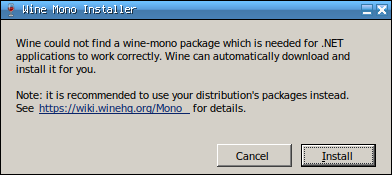
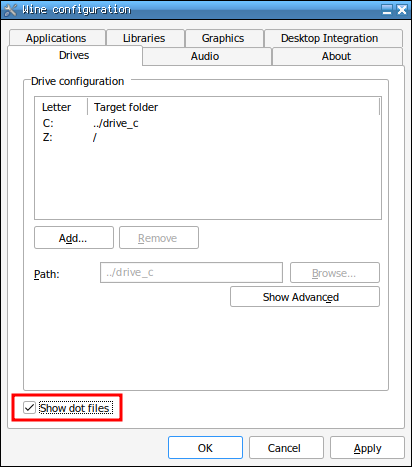
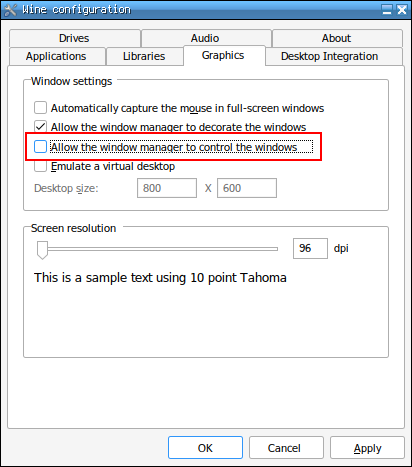
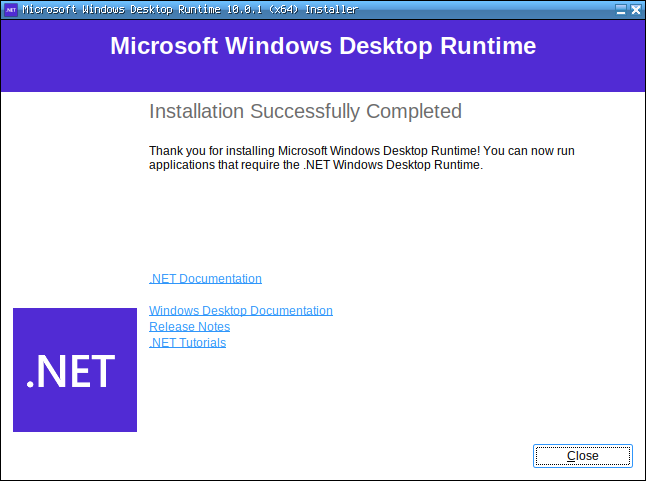
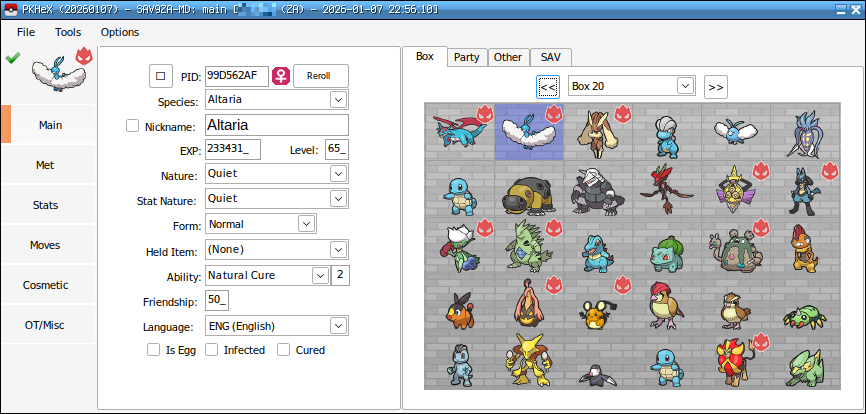
I know there are already some threads about running PKHeX on Linux (like this one or this one) but they are all outdated and none of them are simple and straightforward enough. I feel like there's still a lot of confusion about PKHeX and Linux, so I'm making this thread hoping for it to become the ultimate reference for this subject. I'll keep it up to date. --------------------------------------------------- Latest working PKHeX version: LATEST (26.08.26) (development builds should also work unless major changes, but my thread will only keep the latest stable release as reference) Known bugs (if you know more please tell me): Drag & dropping files into the program's window (such as save files or pcdata.bin files) isn't really stable and could lead to a crash. Always make a backup or try to avoid drag & drop at all by only using File > Open; Pointing to a Pokémon in the box with the cursor should display a little window with a summary of the information of the Pokémon. This is a little bit buggy as the window will only show for some seconds. Use CTRL + Left Click on a Pokémon to display it. If it doesn't work at first try, make some more CTRL + Left Click; Moving a Pokémon from one box slot to another empty slot visually duplicates it instead of just moving it. Simply switching boxes refreshes the screen and shows that the Pokémon has actually been moved. If you move multiple Pokémon, it might become inconvenient. It is still preferable to first open the Pokémon in the editor (Right Click on the slot > View) and then use Right Click > Set in the desired empty slot. When importing a Fire Red or Leaf Green save file, a dialog box will ask you to manually select if the game is Fire Red or Leaf Green. Clicking any of the option doesn't work. Rename the save file to something like FR or LG so that PKHeX can automatically load the correct game. Some plugins won't work. --------------------------------------------------- 1) Installing Wine The vanilla version of Wine is more than sufficient to use PKHeX. There is no need to use software like Bottles or Lutris, which I would not recommend unless you know what you are doing. However, if you use plugins (from the PKHeX plugins folder), it is advisable to also try the staging version of Wine (which includes more up-to-date patches), since some plugins can sometimes prevent the program from starting. As of March 2026, starting from Wine 11.5 there's a bug that prevents some PKHeX menus from opening. This includes, for example, the Trainer Info tab or the Box Search function. While waiting for a fix from Wine, there are two possible workarounds: Downgrade to Wine 11.4, which is the latest version not affected by this bug: Keep using the latest version of Wine, but with one precaution: 2) Creating a Wine prefix It's better to create a separated Wine prefix (the “Windows environment”, for those who don't know what a prefix is) so that it won't conflict with others (if you have any). You can do that with the following command: WINEPREFIX=/path/to/your/prefix/pkhex wineboot Replace /path/to/your/prefix/pkhex with the folder you want to create the prefix in. For example: WINEPREFIX=/home/anon/Prefix/pkhex wineboot Let it set up everything. If it asks for the Mono installation you don't need it, so you can click on cancel. 3) Installing .NET Desktop Runtime 10 PKHeX needs the 64 bit version of .NET Desktop Runtime 10 to work. You can download the latest executable from here. Launch the following command to start the installer: WINEPREFIX=/path/to/your/prefix/pkhex wine /path/to/the/installer/windowsdesktop-runtime-10.0.10-win-x64.exe As seen before replace the paths with your own ones. For example: WINEPREFIX=/home/anon/Prefix/pkhex wine /home/anon/Downloads/windowsdesktop-runtime-10.0.10-win-x64.exe 4) Launching PKHeX PKHeX can now be launched with this command: WINEPREFIX=/path/to/your/prefix/pkhex wine /path/to/pkhex/executable/PKHeX.exe In my case: WINEPREFIX=/home/anon/Prefix/pkhex wine /home/anon/Games/Pokémon/PKHeX/PKHeX.exe 5) Making a launcher for PKHeX In case you don't want to use the terminal every time you want to launch PKHeX you can create a launcher for it. For example you can make a simple bash script for it. Paste the following content into a text editor and save the file wherever you want and with whatever name you want: #!/bin/bash WINEPREFIX=/home/anon/Prefix/pkhex wine /home/anon/Games/Pokémon/PKHeX/PKHeX.exe As always replace the paths with yours. Now make the file executable by running: chmod +x /path/to/your/script For example: chmod +x /home/anon/Games/Pokémon/PKHeX/Launcher Now you can simply open PKHeX by double-clicking the launcher. 6) Some tips and troubleshooting Chinese, Japanese and Korean fonts are not showing: PKHeX can't see files located in hidden folders: PKHeX window behaves in a strange way: Wine is in conflict with the local version of .NET: