
Search the Community
Showing results for tags 'linux'.
Found 5 results
-
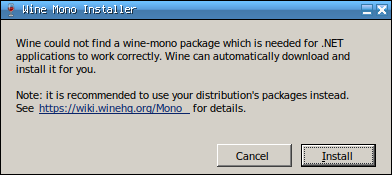
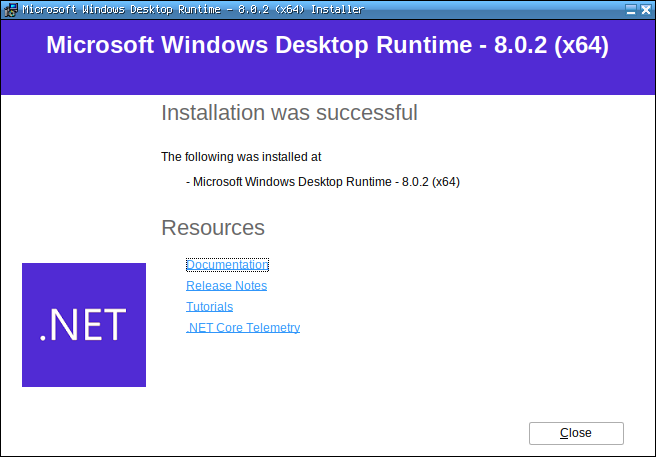
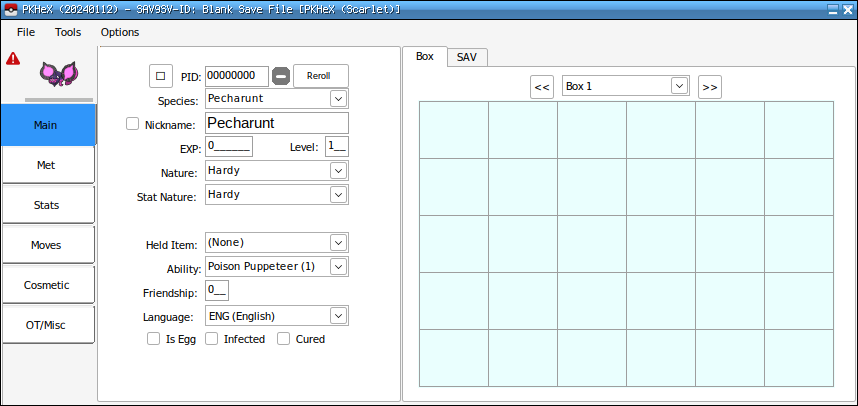
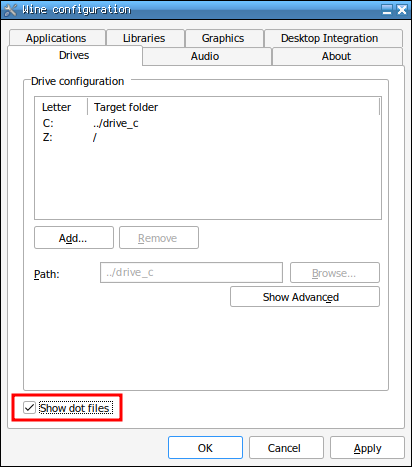
I know there are already some threads about running PKHeX on Linux (like this or this) but they are all outdated and none of them is simple and straightforward enough. I feel like there’s still a lot of confusion about PKHeX and Linux, especially for what happened recently when the program switched from .NET 7 to .NET 8, so I’m making this thread hoping for it to become the ultimate reference for this subject. I'll keep it up to date. --------------------------------------------------- Latest PKHeX version: 24.07.03 Status: WORKING Known bugs: Drag & dropping save files into the program's window isn't really stable and could lead to a crash. This usually happens when you import/export boxes in a save file, and then import another one into the program. Always make a backup or try to avoid drag & drop at all by only using the File > Open option. --------------------------------------------------- 1) Installing Wine Vanilla Wine is more than enough to run and use PKHeX, however it isn't stable enough if you use plugins (.dll files from the plugins folder), as you'll notice that some plugins prevent the program from starting. If you use plugins, the recommended version of Wine is Wine Staging, which includes more up-to-date patches that support much more plugins. Please refer to your distribution's documentation if you don’t know how to install Wine or Wine Staging. Just make sure to be at least on version 9.3 (or higher), this is very important. Using PKHeX is a matter of a couple of commands and everything will work fine without having to go through a bunch of settings in programs like Lutris and Bottles, which I don't recommend unless you know what you are doing. 2) Creating a Wine prefix It's better to create a separated Wine prefix (the “Windows environment”, for those who don’t know what a prefix is) so that it won't conflict with others (if you have any). You can do that with the following command: WINEPREFIX=/path/to/your/prefix/pkhex wineboot Replace /path/to/your/prefix/pkhex with the folder you want to create the prefix in. For example: WINEPREFIX=/home/anon/Prefix/pkhex wineboot Let it set up everything. If it asks for the Mono installation you don’t need it, so you can click on cancel. 3) Installing .NET Desktop Runtime 8 PKHeX needs the 64 bit version of .NET Desktop Runtime 8 to work. You can download it from here. This is the global page with every download link, just in case the given link dies because of a version change (it is currently 8.0.7). Launch the following command to start the installer: WINEPREFIX=/path/to/your/prefix/pkhex wine /path/to/the/installer/windowsdesktop-runtime-8.0.7-win-x64.exe As seen before replace the paths with your own ones. For example: WINEPREFIX=/home/anon/Prefix/pkhex wine /home/anon/Downloads/windowsdesktop-runtime-8.0.7-win-x64.exe Go through the installation process. 4) Launching PKHeX PKHeX can now be launched with this command: WINEPREFIX=/path/to/your/prefix/pkhex wine /path/to/pkhex/executable/PKHeX.exe In my case: WINEPREFIX=/home/anon/Prefix/pkhex wine /home/anon/Games/Pokémon/PKHeX/PKHeX.exe 4.1) Note on .NET If you have .NET installed on your system (it is available natively for Linux, it's the Desktop Runtime needed by PKHeX that isn't) PKHeX might not launch. If this is the case for you make sure to add the following arguments to the command: WINEPREFIX=/path/to/your/prefix/pkhex env -u DOTNET_ROOT -u DOTNET_BUNDLE_EXTRACT_BASE_DIR wine /path/to/pkhex/executable/PKHeX.exe In my case: WINEPREFIX=/home/anon/Prefix/pkhex env -u DOTNET_ROOT -u DOTNET_BUNDLE_EXTRACT_BASE_DIR wine /home/anon/Games/Pokémon/PKHeX/PKHeX.exe 5) Making a launcher for PKHeX In case you don’t want to use the terminal every time you want to launch PKHeX you can create a launcher for it. For example you can make a simple bash script for it. Paste the following content into a text editor and save the file wherever you want and with whatever name you want: #!/bin/bash WINEPREFIX=/home/anon/Prefix/pkhex wine /home/anon/Games/Pokémon/PKHeX/PKHeX.exe As always replace the paths with yours. Of course this can also be the command seen in paragraph 4.1: #!/bin/bash WINEPREFIX=/home/anon/Prefix/pkhex env -u DOTNET_ROOT -u DOTNET_BUNDLE_EXTRACT_BASE_DIR wine /home/anon/Games/Pokémon/PKHeX/PKHeX.exe Now make the file executable by running: chmod +x /path/to/your/script For example: chmod +x /home/anon/Games/Pokémon/PKHeX/Launcher Now you can simply open PKHeX by double-clicking the launcher. 6) Some tips CJK Fonts: Open files in hidden folders:
-
Whenever I type in a search box in PKHeX (e.g. to search for a Pokemon species, move, nature, etc.) it will crash immediately. I'm currently using Ubuntu 22.04, but this was also a problem on Ubuntu 21.10. Every other aspect of the program works perfectly fine, it's just very annoying having to manually search through the massive lists to find what I'm looking for. Any help is appreciated! Here's the crash log:
-
Ubuntu LTS 18.04 Mono 6.6.0 Stable (6.6.0.161) Crash log attached Attempting to run PKHeX on Ubuntu with mono PKHeX.exe fails. Terminal log: https://pastebin.com/ujb3qTcs mono_crash.5c91bb4ff.0.json
-
 Dear creator of PKhex. I request that pkhex's change to .net 4.6 be reverted for a build that actually works on mono found in wine, as I use linux, and would not like to waste space on my hdd with .net 4.6. If you could make your code more universal, that would be very desired. Sincerely, St. GIGA
 -
 Im a Pc guy and I just necessarily just want to know what you guys have to say Please explain why you say so and yes ... arguements about the platforms are allowed untill/Unless the mods have a say in that (or stop it) I like pc's for gaming..... yeah thats why