


l3rittany
-
Posts
7 -
Joined
-
Last visited
Recent Profile Visitors
1356 profile views

-

PKVault - Centralized pkm storage management & Pokedex app
l3rittany replied to chnapy's topic in Saves - Tools
Absolutely amazing work @chnapy! And perhaps a good idea to put the bug in other's ear that there isn't any documentation. Seeing this site is loaded with devs, maybe one day someone will be kind enough to put together a wiki! Also, complements on the front end too. Very well designed all around. My little girl is actually getting into Pokemon games; we got her a DSi off of marketplace recently, so looking forward to make use of this tool as she plays through. -
Premade Database Downloads gpss-og-backup.db - Database as is before altering. gpss-empty-backup.db - Empty GPSS database gpss_RoC-Gen1-6_Event.db - All events located in the Gen 6 Folder of RoC's PC. gpss_RoC-Gen1-6_Event.db gpss-empty-backup.db gpss-og-backup.db
-
Friendly reminder: swap Filezilla transfer from Auto to Binary when transferring JKSM saves from ftp://....
 Coulda saved hours of my life with that one haha
-
PKVault - Centralized pkm storage management & Pokedex app
l3rittany replied to chnapy's topic in Saves - Tools
I'm curious how you're doing this? I just started playing with PKHeX three or four days ago but I'm also a mom so I haven't had time to dissect lol. Are you just converting files to their destined pk versions and storing it in the backend? Either way, this is a really neat tool!!! Awesome!! -
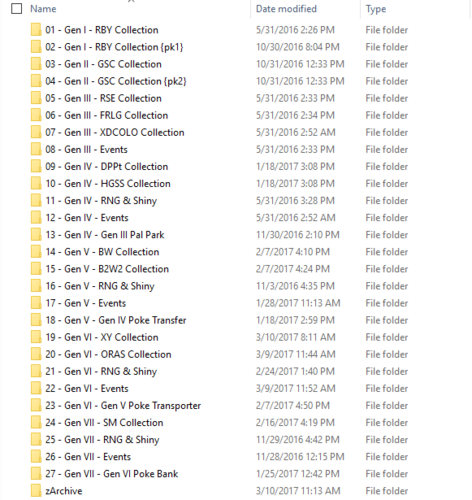 Was able to create multiple PKSM databases with this; this is legendary. Saved a lot of time for me. Thank you so much.
 -
l3rittany changed their profile photo
-
Post Saved for MacOS tutorial
-
Post Saved for Windows Tutorial
-
Using Local API to Upload PKHeX Saves to PKSM Cloud (2025) aka: Upload PKHeX Files directly to your PKSM straight from your computer. Official Set Up Guide (Linux) RUN THIS GUIDE THROUGH AI TO SEE IF IT CAN GENERATE A WINDOWS/MAC FRIENDLY TUTORIAL AND DON'T FORGET TO VIEW THE SPOILER IN STEP 8. Otherwise, wait for me to release it. If you choose to do this, be sure to read along with this actual tutorial because AI will mess this up if you're not careful. If a kind person wants to translate this guide for these OS for me, I will be forever appreciative. Find me in the Discord Server and DM me if you have done so. ──────────────────────────────────────── Hi there, I'm a mom and I like to make things easy. Last thing I want to do is physically move my SD card into my PC to inject Pokémon into Gen 6 or older games into PKSM. I don't have the time to do all that when I've got a toddler to keep up with. This guide will fix this issue, that way you can just inject PKHeX Pokémon into PKSM Cloud straight from your PC. As far as I am aware the API has been discontinued for some time leaving people unable to conveniently upload their PKHeX saves into their PKSM; today we are going to fix that. I only started using PKSM and PKHeX two days ago in hopes of restoring some legitimate competitive Pokes I spent hours breeding back in 2014. My game cartridges were unfortunately stolen from me... amazingly I had all the necessary data's footprint on the web that's survived 10+ years so I can recreate them in PKHeX. Thank you devs!! WARNING: I haven't had the time to write this out for Windows/Mac but I am very happy to share my steps for Linux users and update this guide in the future for other operating systems. Perhaps you can plug in my code into AI to make it Windows/Mac friendly in the meantime. I'm also writing this guide out strictly from memory, so if you run into any complications please let me know because I might've miswritten something. DO THIS AT YOUR OWN DISCRETION. IT IS HIGHLY ADVISED NOT TO SKIP OR DELETE THE DATABASE BACKUP JUST INCASE SOMETHING GOES AWRY. ──────────────────────────────────────── Read each instruction carefully. 1.) Download local-gpss: Download the latest version of local-gpss. Again, I'm using the Linux version. Don't extract the contents yet. 2.) Create an Apps directory if you haven't already and its subfolders: I'm just going to show you my pathing that I do. I like to keep all my Apps in an App folder in the home directory, Open up a Terminal. mkdir -p ~/Apps/local-gpss/PKM Then, go to your recently downloaded linux64.zip and extract all the contents into ~/Apps/local-gpss. (NOT into the PKM folder, this is where your PKHeX data is going to go when you're finished setting up.) 3.) In the terminal, enter the following code to run your local server: cd ~/Apps/local-gpss/ ./local-gpss/ If this is your first time booting the server, it will ask if you want to download a database. (gpss.db), hit Y. 4.) Test to see if the server is live: You should have been given an IP address and it's port to plug into the API section of PKSM in your terminal. It should look something like this: http://192.168.x.xxx:5000 On your 3DS, go to PKSM > X Button (Settings) > Local API URL > Enter http://192.168.x.xxx:5000 > Press OK > B Button > Select Game of Choice > Load with A Button > Storage > Press Wifi Button on the Bottom Left Corner. If the cloud storage loaded, everything is running smoothly. 5.) Kill server for now: On the server terminal press Ctrl + C. Optional: For good measure, type this in your terminal to be absolutely sure it's dead pkill local-gpss 6.) Create a Backup of your gpss.db: In Thunar, navigate to ~/Apps/local-gpss, copy and paste the gpss.db in the local-gpss directory, and rename it to gpss-backup. 7.) Clear the Database and check to see if it's empty: There are SO many pokemon left in this database from when the database was publicly accessed, I'm assuming, so let's clear them out to make room for our own 'mons. (Sidenote for Devs/Tech Savvy people: I have each DELETE and SELECT separated for other developer's clarity if anyone wants to do anything/make their own modifications with this.) # Clear the tables sqlite3 "$HOME/Apps/local-gpss/gpss.db" <<'EOF' DELETE FROM bundle_pokemon; DELETE FROM bundle; DELETE FROM pokemon; VACUUM; EOF Now, sanity check to see if it's clear. # Verify the tables are empty sqlite3 "$HOME/Apps/local-gpss/gpss.db" <<'EOF' SELECT 'bundle_pokemon count: ' || COUNT(*) FROM bundle_pokemon; SELECT 'bundle count: ' || COUNT(*) FROM bundle; SELECT 'pokemon count: ' || COUNT(*) FROM pokemon; EOF If you see something along the lines of: bundle_pokemon count: 0 bundle count: 0 pokemon count: 0 The data successfully cleared and it's safe to move on to the next Step. Optional: Also create a backup for the empty database. Copy and paste current gpss.db, the empty one, into the local-gpss directory and name it "gpss-empty-backup.db". 8.) Create the shell script and command to regenerate your database: (Tech Savvy individuals check note at bottom.) Lets create a shell script that will allow you to add your Pokemon to your database with one simple terminal command. We will create a shell script called gpss-import-all. gpss-import-all will do the following: Back up your current DB Create a new bundle each run (no overwrites) Auto-detect gen from the file extension Compute bundle min_gen / max_gen from the files it actually imported De-dupe by content (skips exact duplicates) Kill Local-GPSS if you accidentally left it running, restart Local-GPSS and print your API URL. Copy and Paste the ENTIRE code in the spoiler below into your terminal. For my tech savvy people ONLY: (if you're not a developer skip this section) TLDR for Devs: .pk* files are encoded as Base64 inside SQLite. If you ever get “GetString() on NULL values” or “500 Internal Server Error” when PKSM loads Cloud, run the above SQL to replace missing download_code, generation, and base_64 values... it’s always one of those being NULL. 9.) Add your PKHeX files to the PKM folder in ~/Apps/local-gpss: Pretty self-explanatory. Generate the desired PKHeX files and add them to the PKM folder in your local-gpss directory. 10.) Repopulate your Empty DB: In your terminal, type: gpss-import-all You should have now imported all Pokemon that you've generated and started your server (while creating a backup,) Optional: Do another sanity check to see if the tables have populated. Enter this into a new terminal. # Verify the tables are populated sqlite3 "$HOME/Apps/local-gpss/gpss.db" <<'EOF' SELECT 'bundle_pokemon count: ' || COUNT(*) FROM bundle_pokemon; SELECT 'bundle count: ' || COUNT(*) FROM bundle; SELECT 'pokemon count: ' || COUNT(*) FROM pokemon; EOF You should see: bundle_pokemon count: [THE AMOUNT YOU JUST IMPORTED] bundle count: [THE AMOUNT YOU JUST IMPORTED] pokemon count: [THE AMOUNT YOU JUST IMPORTED] If you see this, congratulations, you've set up everything correctly and ready to Generate like a boss. 11.) Load PKSM and inject your generated pokemon into your game: Select Game of Choice > Load with A Button > Storage > Press Wifi Button on the Bottom Left Corner TA-DA they should be good to go! Enjoy! ──────────────────────────────────────── Important Sidenotes: Might need to unblock port 5000 on your firewall if your 3DS isn't finding it. I highly recommend making these a shell script for your convenience.