

Leaderboard




Popular Content
Showing content with the highest reputation on 11/15/24 in Posts
-
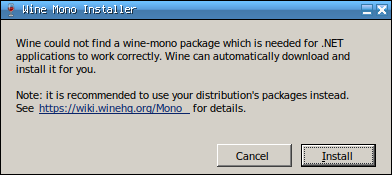
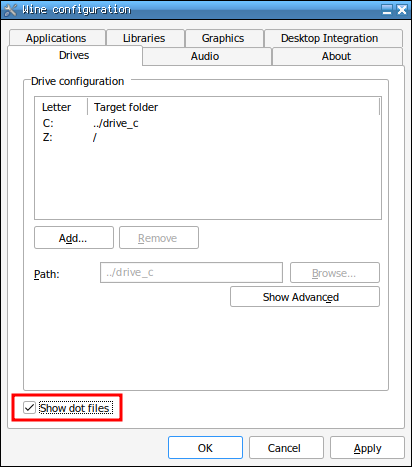
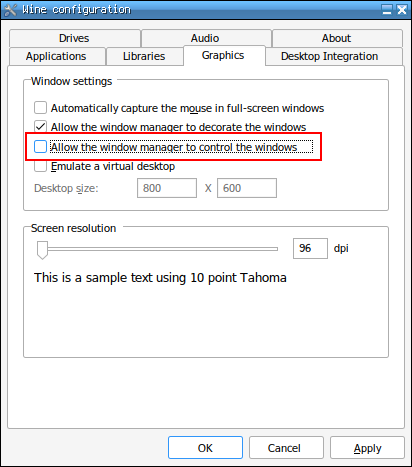
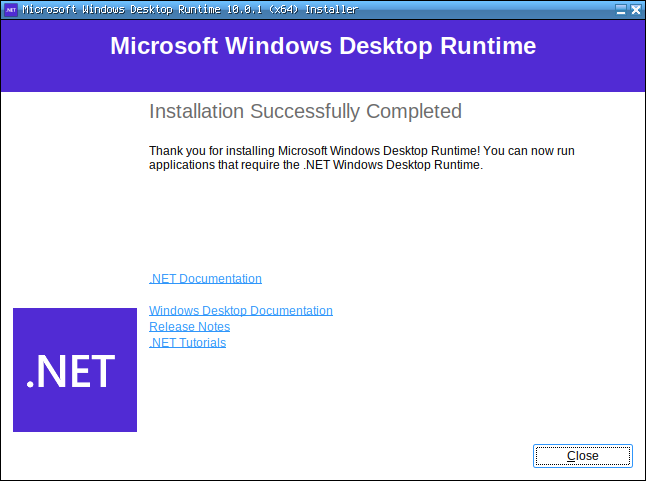
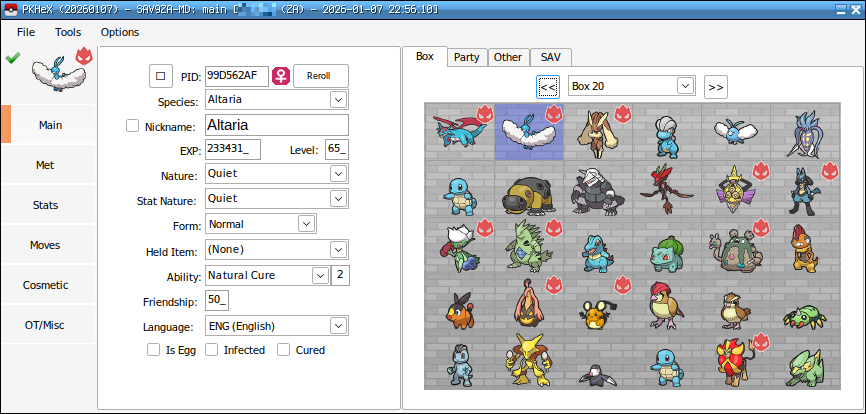
I know there are already some threads about running PKHeX on Linux (like this one or this one) but they are all outdated and none of them are simple and straightforward enough. I feel like there’s still a lot of confusion about PKHeX and Linux, so I’m making this thread hoping for it to become the ultimate reference for this subject. I'll keep it up to date. --------------------------------------------------- Latest working PKHeX version: LATEST (26.07.07) (development builds should also work unless major changes, but my thread will only keep the latest stable release as reference) Known bugs (if you know more please tell me): Drag & dropping save files into the program's window isn't really stable and could lead to a crash. This usually happens when you import/export boxes to/from a save file, and then drag another save file into the program's window. Always make a backup or try to avoid drag & drop at all by only using File > Open; Pointing to a Pokémon in the box with the cursor should display a little window with a summary of the information of the Pokémon. This is a little bit buggy as the window will only show for some seconds. Use CTRL + Left Click on a Pokémon to display it. If it doesn't work at first try, make some more CTRL + Left Click; Moving a Pokémon from one box slot to another empty slot visually duplicates it instead of just moving it. Simply switching boxes refreshes the screen and shows that the Pokémon has actually been moved. If you move multiple Pokémon, it might become inconvenient. It is still preferable to first open the Pokémon in the editor (Right Click on the slot > View) and then use Right Click > Set in the desired empty slot. When importing a Fire Red or Leaf Green save file, a dialog box will ask you to manually select if the game is Fire Red or Leaf Green. Clicking any of the option doesn't work. Rename the save file to something like FR or LG so that PKHeX can automatically load the correct game. Some plugins won't work. --------------------------------------------------- 1) Installing Wine The vanilla version of Wine is more than sufficient to use PKHeX. There is no need to use software like Bottles or Lutris, which I would not recommend unless you know what you are doing. However, if you use plugins (from the PKHeX plugins folder), it is advisable to also try the staging version of Wine (which includes more up-to-date patches), since some plugins can sometimes prevent the program from starting. As of March 2026, starting from Wine 11.5 there's a bug that prevents some PKHeX menus from opening. This includes, for example, the Trainer Info tab or the Box Search function. While waiting for a fix from Wine, there are two possible workarounds: Downgrade to Wine 11.4, which is the latest version not affected by this bug: Keep using the latest version of Wine, but with one precaution: 2) Creating a Wine prefix It's better to create a separated Wine prefix (the “Windows environment”, for those who don’t know what a prefix is) so that it won't conflict with others (if you have any). You can do that with the following command: WINEPREFIX=/path/to/your/prefix/pkhex wineboot Replace /path/to/your/prefix/pkhex with the folder you want to create the prefix in. For example: WINEPREFIX=/home/anon/Prefix/pkhex wineboot Let it set up everything. If it asks for the Mono installation you don’t need it, so you can click on cancel. 3) Installing .NET Desktop Runtime 10 PKHeX needs the 64 bit version of .NET Desktop Runtime 10 to work. You can download the latest executable from here. Launch the following command to start the installer: WINEPREFIX=/path/to/your/prefix/pkhex wine /path/to/the/installer/windowsdesktop-runtime-10.0.10-win-x64.exe As seen before replace the paths with your own ones. For example: WINEPREFIX=/home/anon/Prefix/pkhex wine /home/anon/Downloads/windowsdesktop-runtime-10.0.10-win-x64.exe 4) Launching PKHeX PKHeX can now be launched with this command: WINEPREFIX=/path/to/your/prefix/pkhex wine /path/to/pkhex/executable/PKHeX.exe In my case: WINEPREFIX=/home/anon/Prefix/pkhex wine /home/anon/Games/Pokémon/PKHeX/PKHeX.exe 5) Making a launcher for PKHeX In case you don’t want to use the terminal every time you want to launch PKHeX you can create a launcher for it. For example you can make a simple bash script for it. Paste the following content into a text editor and save the file wherever you want and with whatever name you want: #!/bin/bash WINEPREFIX=/home/anon/Prefix/pkhex wine /home/anon/Games/Pokémon/PKHeX/PKHeX.exe As always replace the paths with yours. Now make the file executable by running: chmod +x /path/to/your/script For example: chmod +x /home/anon/Games/Pokémon/PKHeX/Launcher Now you can simply open PKHeX by double-clicking the launcher. 6) Some tips and troubleshooting Chinese, Japanese and Korean fonts are not showing: PKHeX can't see files located in hidden folders: PKHeX window behaves in a strange way: Wine is in conflict with the local version of .NET:
 1 point
 -
Hey I just wanted to drop in and say thanks for the guide mate. It worked perfectly to get pkhex up and running on my system. \( ̄▽ ̄)/1 point
-
yup. I'm doing that. still works.1 point
-
SysNand CFW is safe until you don't do piracy or cheating in online games/competitions. No one has ever been banned for using this tool, or pokemon save/ram reader and editors. There's even sysbots who works while the game is connected online. Anyways, if you prefer just drag & drop the wondercard files in any empty slot in PKHeX. The program will create a pkm file for you. If you need help on this, open another topic. This is only for sgdm.1 point