Leaderboard



Popular Content
Showing content with the highest reputation on 05/12/18 in Posts
-
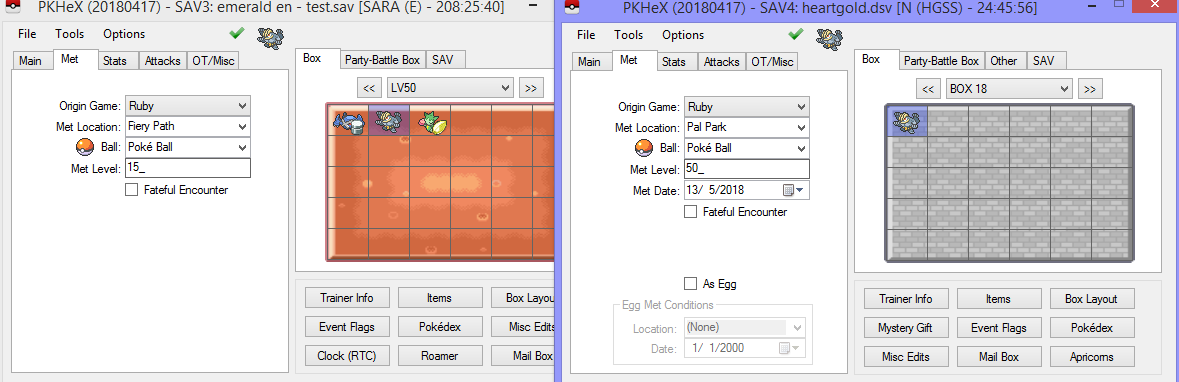
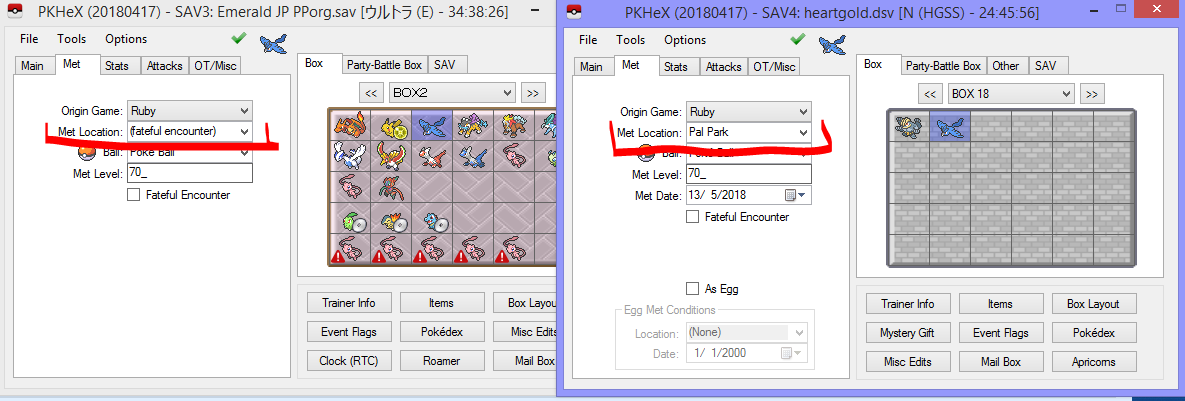
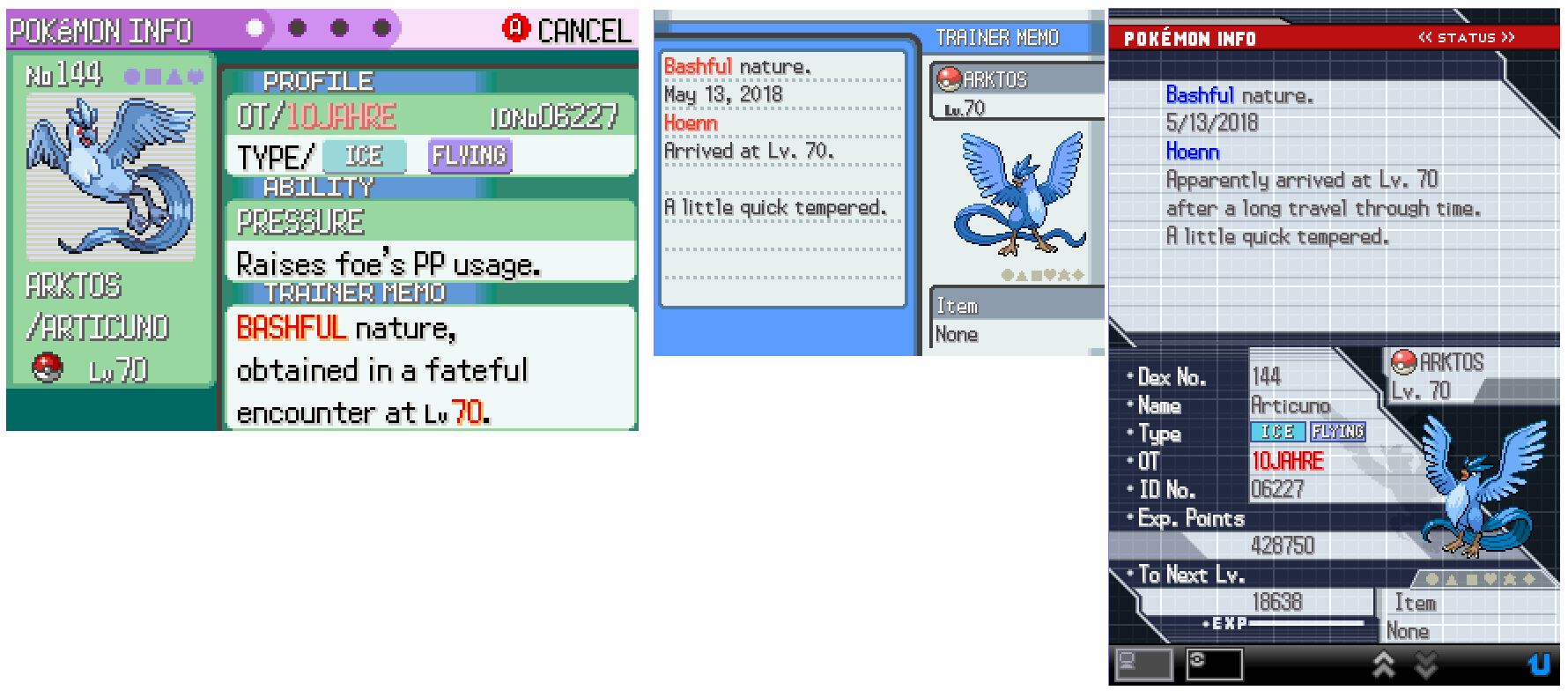
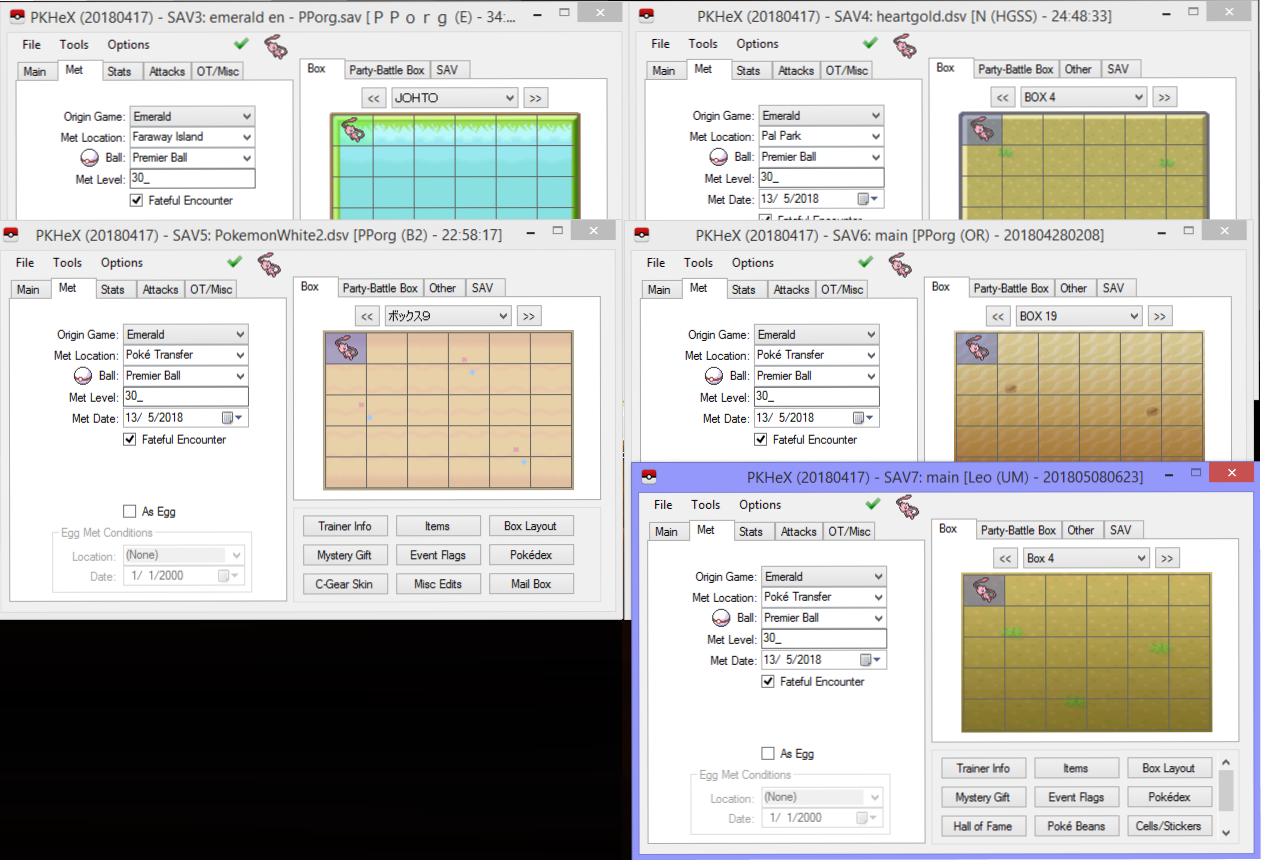
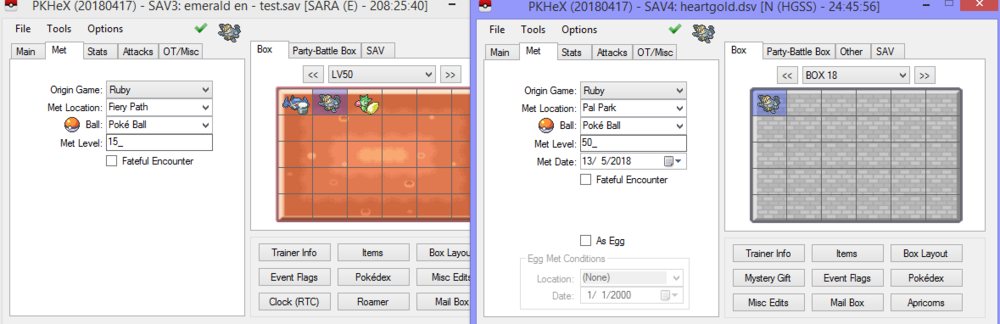
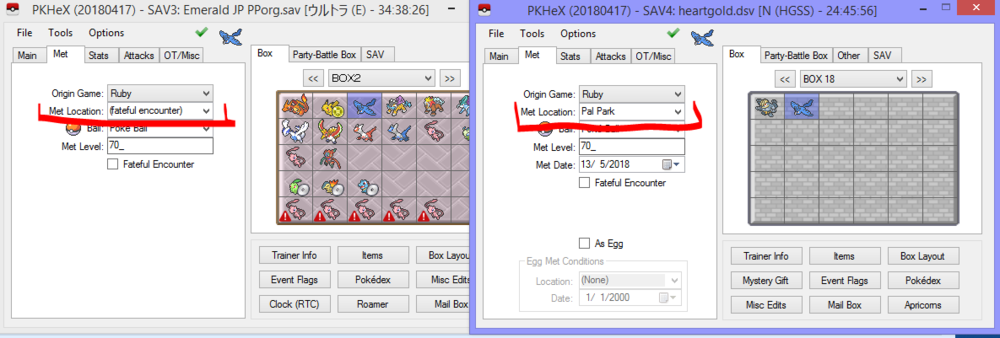
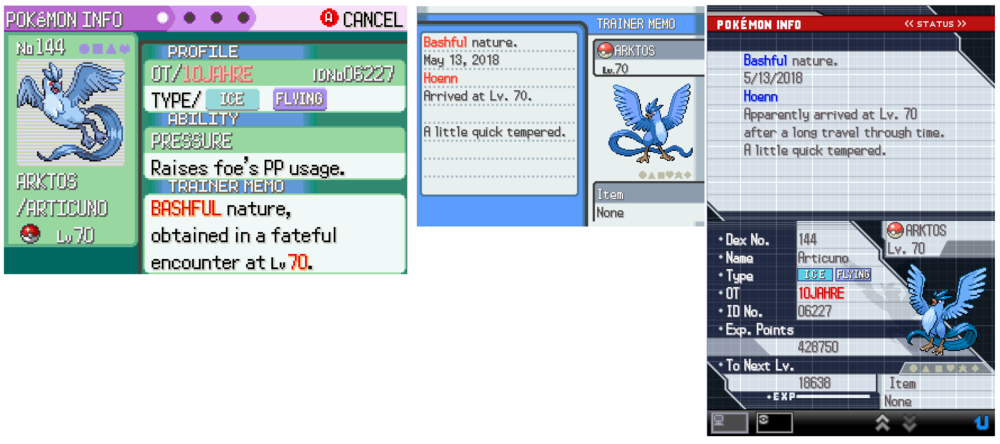
My response has to be in a spoiler below, cause my reply is huge. With everything I've shown and said, it's probably enough for you to reach a conclusion, right? XD
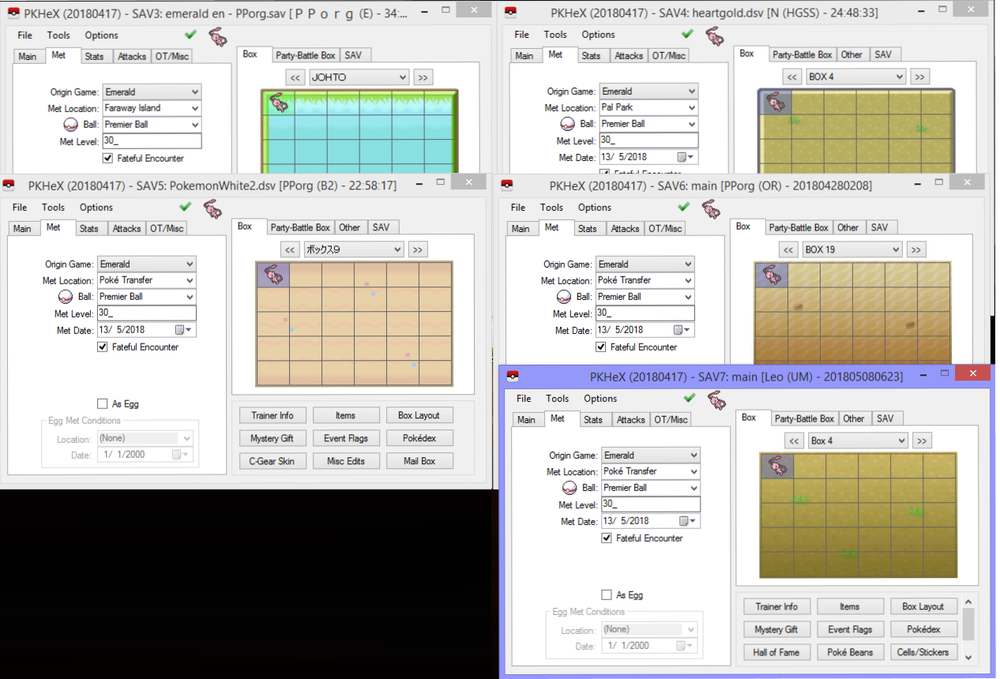
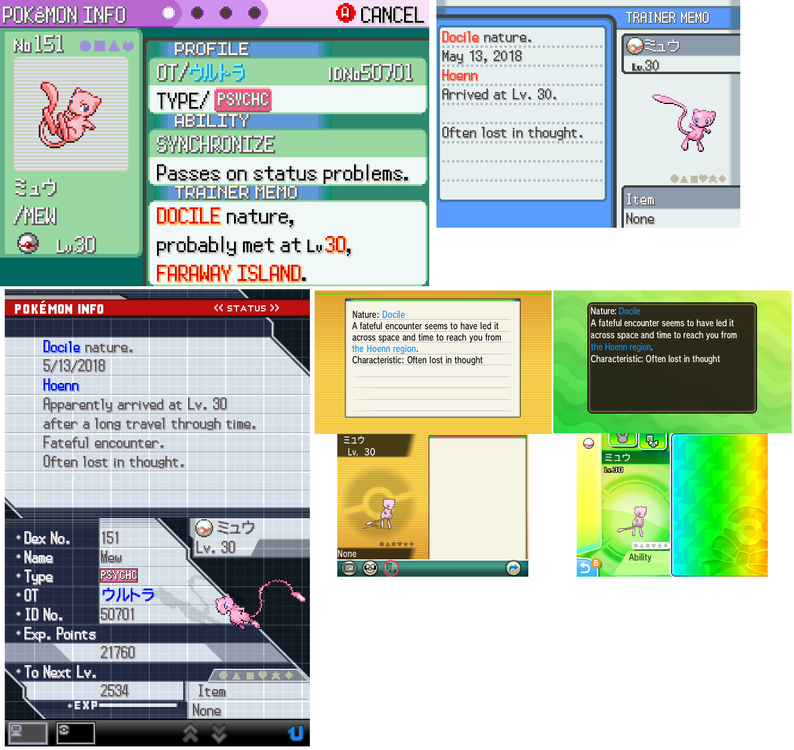 2 points
 -
This is the exact same method as the previous guide, but instead of backup up the entire memory card, we will be backing up a single save file (gci) that you can inject back into your memory card later instead of overwriting the entire memory card. 1. Open the homebrew channel on your Wii and launch GCMM. 2. Click "A" to use your SD card as the destination for the save backup. 3. Click "-" to Enter "Backup Mode". To restore your save after editing it, you will need to press "+". 4. Choose what memory card you would like to backup and click the corresponding button. In my case, my memory card is in Slot A so I will click "A". 5. Find the game you want to backup. Then click "A". 6. Wait for your save to be backed up to your SD card. Then click "A". 7. Eject your SD card from your Wii and insert it into your computer. Then navigate to "MCBACKUP". Inside this folder will be your save file. 8. MAKE A BACKUP OF THIS FILE BEFORE USING OR EDITING IT WITH ANY SAVE EDITORS. View full tutorial2 points
-
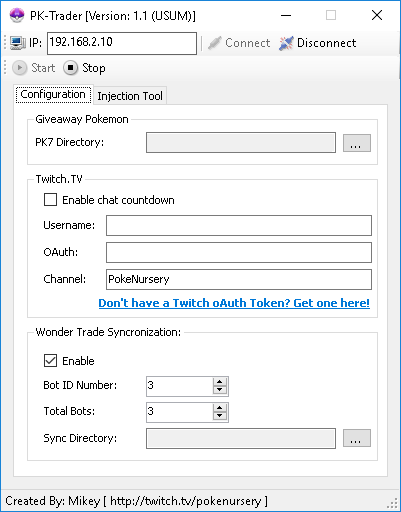
Project Pokemon, I'm not sure how much longer I will be doing giveaways so I've decide to go ahead and make one of my automated trade bots public. Currently I am releasing my Wonder Trade bot to the public. If you'd like to use it feel, free, it will be attached to this thread. If you have any questions on how to use it, please, don't hesitate to ask. This software requires a 3DS, both old & new supported, with CFW/NTR & InputRedirection. I've also add a Twitch.TV integration to it, so your Wonder Trades can have a timer for your chat participants to see. It also supports synchronizing multiple consoles together. Here's a basic breakdown of how to operate it: Above is a screen shot of the UI. Pretty straight forward. 1) In the IP text box, enter the local IP address of the 3DS console you wish to connect to. 2) For the PK7 directory, select the folder on your PC that contains the PK7 (Pokemon) files you wish to Wonder Trade. Optional: If you would like your trades to have a countdown in your Twitch.TV channel, 1) Check the box "Enable chat countdown." 2) Enter the username of your bot into the Username text box. 3) Enter your oAuth Token into in the oAuth Token text box. (If you do not have an oAuth Token you can quickly have one generated by clicking the blue link) 4) Enter the channel name you want your bot to enter when performing the countdown. Synchronization: As stated above, you can also "sync" numerous consoles to trade at the same time, on the same timer countdown. To do so, open multiple copies of the application, also make sure to put each executable in their own folder! Assign each console you're connect to a unique Bot ID Number, and select how many trade bots you are using total. The sync directory can be any directory of your choice on your PC. The bot merely writes/deletes text files from this directory to perform the synchronization. Good luck, and enjoy! PK-Trader 1.1.zip
 1 point